
The Elevator Override Mode function is designed to allow any user to freely select a floor using the elevator control panel while a floor/relay is active under a defined time schedule. During this scheduled period, access to those floors is unrestricted. Currently this feature only works with Mercury hardware.
When a reader is put in Override Mode, once the assigned time schedule expires, the floors automatically revert to normal operation. At that point, access is again controlled by the access control system, and only personnel with the appropriate access levels (assigned floor/relay permissions) can gain access using a credential, reader, or other verification methods.
The Override Mode is configured within the Reader Properties under the Elevator Reader Definitions.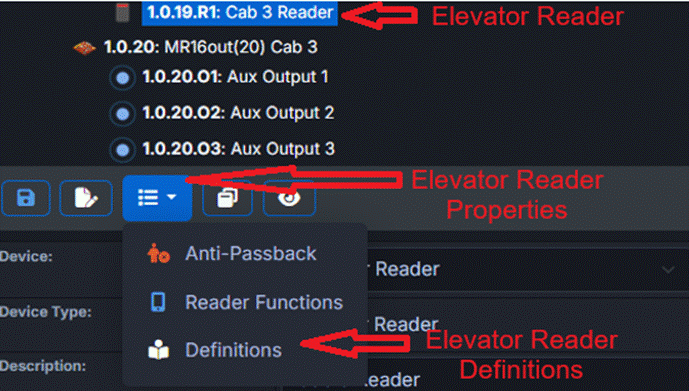
The Override Mode value corresponds directly to the assigned Floor Group (FG) number. For example, setting Override Mode to 3 corresponds to Floor Group 3 (FG 3).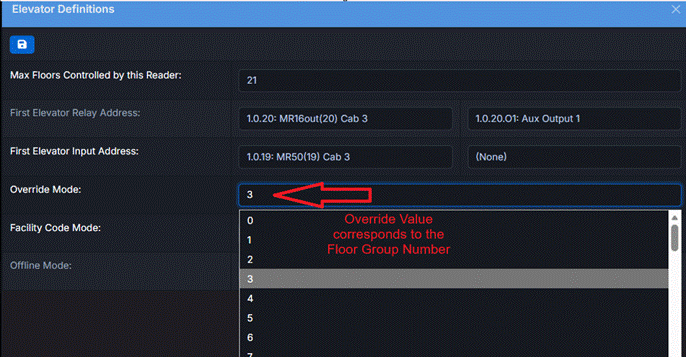
Once the appropriate Floor Group is selected for Override Mode, it is recommended to dedicate this Floor Group exclusively for override-related floor/relay assignments.
Configuration Steps:
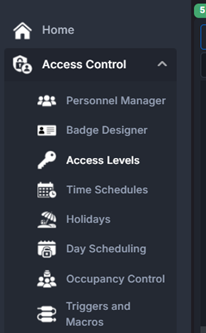
- From Access Control Module, select Access Levels:
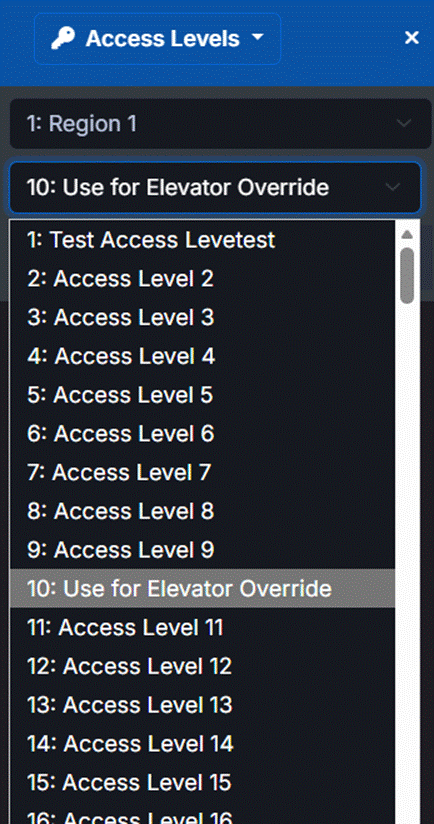
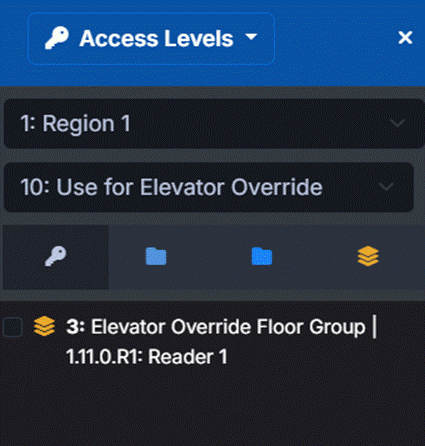
- Select an Access Leve that is unused and dedicate this Access Level to Elevator Override functionality, Example Access Level 10. This Access Level does not need to be added to personnel records and is recommended not to assign it to personnel records.
- Next Click of Floor Groups and Select an available Floor Group or add a new one to the system.
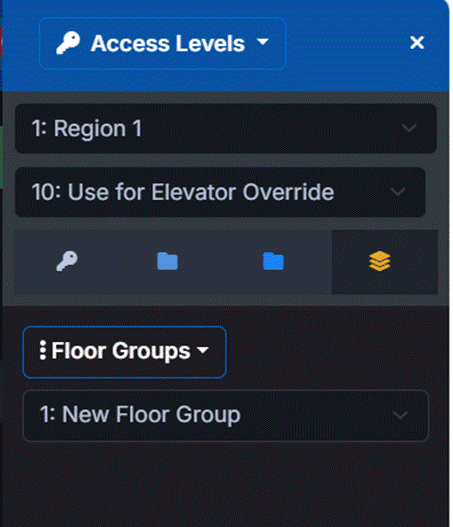
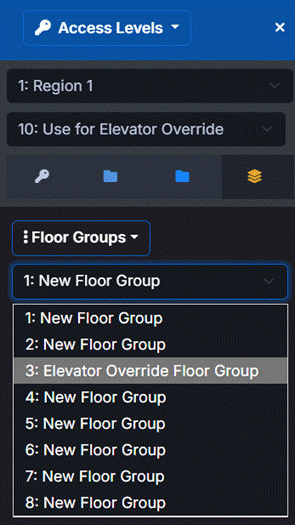
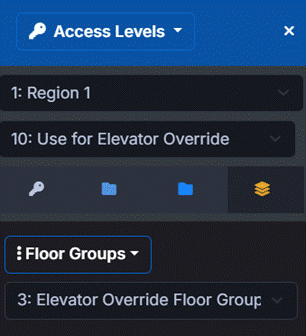
- Click Floor Groups tab to unveil the menu:
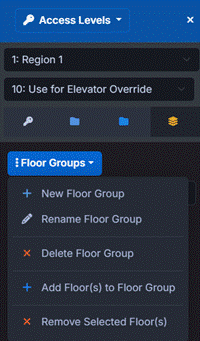
- + Select Add Floor(s) to Floor Group:
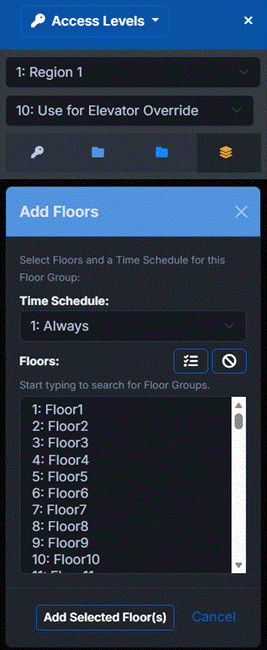
- Assign a time schedule to the desired relays/floors
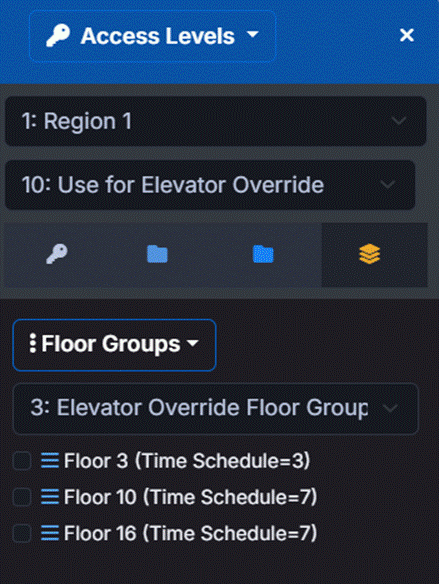
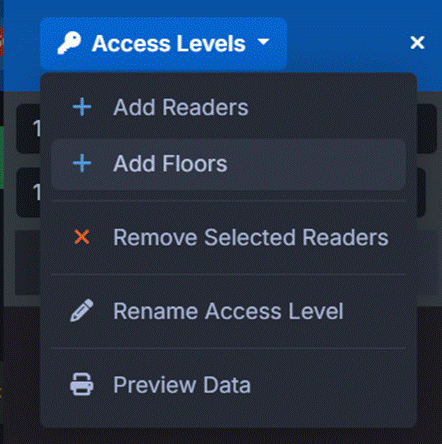
- Go Back to Access Level, select the override Accel Level( example AL 10) and Click add Floors to Access Levels, select the Override Floor Group (Example FG 3)
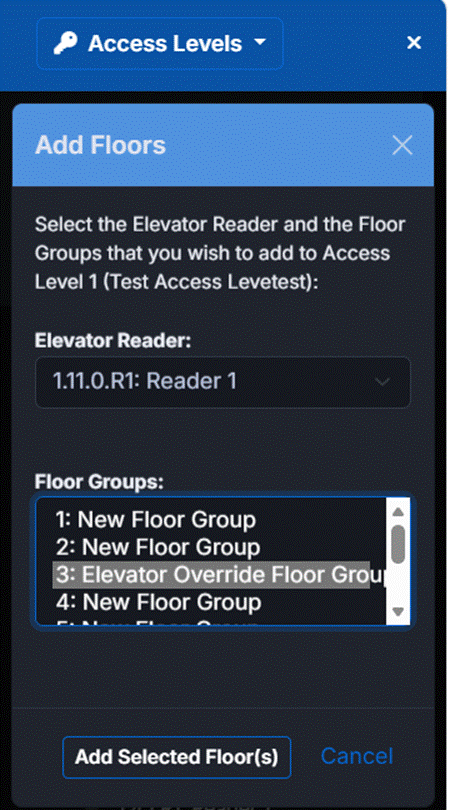
- Select the Override Floor Group along with the corresponding elevator Reader and click add selected Floor(s) (Example FG 3)
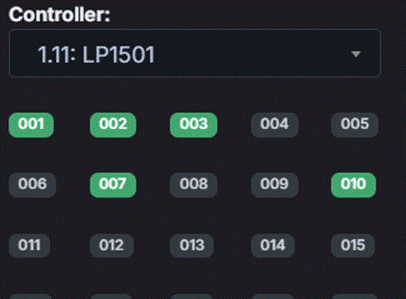
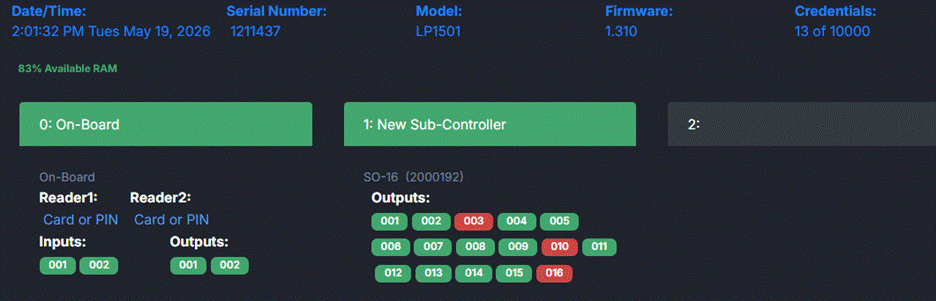
- Top of the minute if the Time schedule is active the floor/relay will activate.
Do not assign this access level to any personnel record. This Access Level, Floor Group and Floors with time schedule are required to be configured to activate the Override Mode functionality within the system.
Once completed, any relay (floor) within this Floor Group that has an active time schedule will automatically allow access during the scheduled timeframe.