
Prerequisites:
- Azure controller must be running firmware version 1.23 or higher
- UnityIS must be running version 12.2.75 or higher
Procedures:
Login to UnityIS:
- Add IC2/IC4 in UnityIS Hardware Manager
- Select the Connection Type: IP-Server = Server connects to board or IP-Client = Board connects to server)
- If using IP-Server, fill in the IP Address field. In the Channel Port property, change the value from 443 to 5000. See full instructions below
- If using IP-Client, fill in the MAC Address field and configure the board to communicate to the server. Instructions for that are below. The Channel Port property is not used for IP Client connection type.
- Change the Dialect to "Direct"
- Unpoll the controller and hit save.
- Poll the controller and hit save.
Configuring IC2/IC4 if using Connection Type: IP Server
- Log into panel. The default username is admin. The default password (case-sensitive) is the last 6 of the mac address. It will appear on a sticker attached to the board.
- Click on Services
- Leave the Web Config settings as is.
- Leave the Clientsettings as is
- Go to the Main Node section "Port" value located directly under the "Incoming Connection" section must match the Channel Port in hardware property of the controller in the software:
IC2/IC4- Main Node section: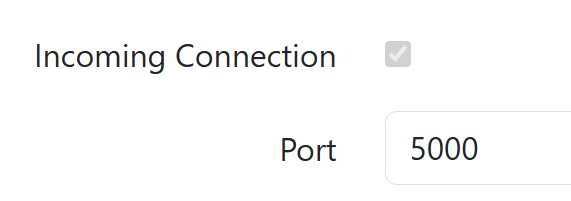
UnityIS Channel Port:
- Go to the Main Node section "Port" value located directly under the "Incoming Connection" section must match the Channel Port in hardware property of the controller in the software:
- Click "Save." The board will restart.
Configuring IC2/IC4 if using Connection Type: IP Client
- Log into panel. The default username is admin. The default password (case-sensitive) is the last 6 of the mac address. It will appear on a sticker attached to the board.
- Click on Services
- Leave the Web Config settings as is.
- Leave the Client settings as is
- Go to the Main Node section and make sure its enabled (checked). Locate Outgoing Connections property and check the box. Under the 'Hostname' for Host ID 1, enter the name of the UnityIS server. If the server is hosted in the Cloud, enter the fully qualified name and append with ":5050". Port 5050 is the default comm port used for IP Client. This cannot be changed.
'Hostname' format must be: servername (or IP address):5050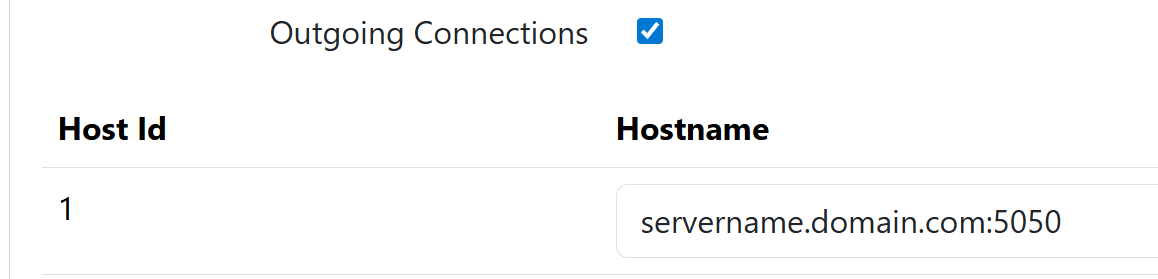
- Click "Save." The board will restart.