Overview
The following article will guide you in to upgrading the firmware on RI2M subcontrollers that are running a firmware version older than 1.26. This applies to Gen1 and Gen2 RI2M boards. The firmware upgrade process must be perform locally at the presence of the RI2M. It cannot be performed remotely or over the network.
Prerequisite
You'll need to have the following in order to successfully upgrade firmware on the RI2M
- Laptop running Windows 10 or higher
- cable that has an RS485 to USB ends. Call IMRON Support for more information on how to obtain one.
- Download the following zip file and unzip and save it to a location on your laptop
Procedures
- Install the Runtime library for .net by running the windowsdesktop-runtime-8.0.15-win-x64.exe file locate in the file that you downloaded
- Plug in the USB-Serial cable: Plug the USB end to your laptop. Plug the Serial end to the RS485 port of the RI2M. You’ll need to go to Device Manager and check Windows Update to download and install the latest drivers for this cable. It should look like this under Ports>USB-Serial CH340 (COM3)
- Next, launch the DebugTool.exe file located inside the same folder as file you downloaded
- In the DebugTool window, change the Port to match what it is showing in Device Manager, for example: COM3. Then set the Baud rate to 115200. Then set the Address to match the dipswitch address of the RI2M, in this case the RI2M is addressed 1, then click on the ‘Connect’ button
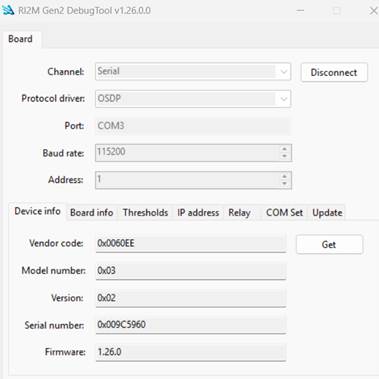
- If the connection from laptop to RI2M is good, the Connect button will display information for the RI2M in the Device Info tab. For example, the existing firmware is 1.22.0.
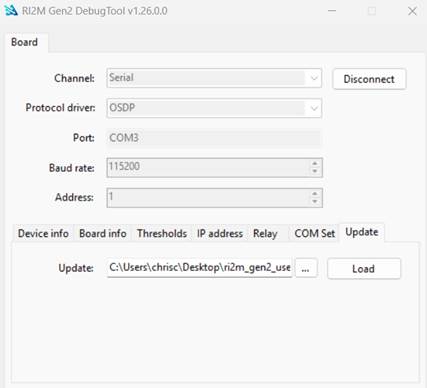
- Next, select on the ‘Update’ tab, and click on the … button to open Windows Explorer. Navigate to the Firmware folder and select the ‘bootloader_update.e19’ file
- Now click on the Load button. The Load button should now appear blue in color. This process takes about 2mins. After completion, the ‘Load’ button blue color will turn off
- Next, click on the … button to open Windows Explorer. Navigate to the Firmware folder and select the ‘app.e19’ file and click on the Load button.
- Again, the Load button will turn blue during this update process. This process takes about 60 seconds. When the blue color of the Load button disappears, the update is completed.
- To confirm, click on the Device info tab and the Firmware should now display 1.26.0
- To complete, click on the Disconnect button
- Reconnect the RS485 connector back on to the RI2M
- Complete.