
Overview
This article documents expected Azure IC2 controller password behavior, explains why password mismatches may occur, and outlines the recommended Network Reset procedure to recover access and safely commission an IC2 at a new site.
Symptoms
- Unable to log into the IC2 web interface using expected credentials
- IC2 appears online in the Security Management Software, but the web login password is unknown
- IC2 was previously installed at another site or replaced an existing controller
- Controller inherits an unexpected password after the first hardware download
Root Cause
When an IC2 connects to the Security Management Software for the first time, it is required to perform an initial Hardware Download as the next immediate action. During this process, the software pushes the controller password stored in the Hardware Tree controller properties, into IC2/IC4 controllers Login credentials webpage.
A password mismatch may occur if:
- The password is deleted or manually modified in the Security Management Software
- A new password is entered by an operator
- An operator unintentionally changes the password during commissioning
Additionally, if the IC2:
- Replaces an existing controller
- Was previously commissioned at another site
- Had a password added that cannot be recovered
- Experienced operator error during password modification
…it may inherit a previously stored password, making the expected login credentials invalid.
Important Note
The controller password can be modified at any time from the Hardware Tree → Controller Properties once the IC2/IC4 is fully functional and online. Performing a Hardware Download will overwrite the controller password with the value currently stored in the Security Management Software.
This is also a valid method to re-establish the expected password format:
ic-xxxxxx
Where xxxxxx = last 6 digits of the controller MAC address (lowercase).
Expected Password Behavior (Azure Controllers Only)
Expected Password Behavior (Azure Controllers Only)
Factory Default (Before Connection to the Security Management Software):
- Username: admin
- Password: pass
After Initial download of the 'Hardware' database from the Security Management Software:
- Username: admin
- Password: ic-xxxxxx
Where:
- xxxxxx = last 6 digits of the controller MAC address
Example:
admin / ic-016118
Note: This behavior applies only to Azure IC2/IC4 controllers. ZK controllers follow different password rules.
Note: This behavior applies only to Azure IC2/IC4 controllers. ZK controllers follow different password rules.
When to Perform a Network Reset
A Network Reset should be performed if:
- The IC2 web login password is unknown
- Network configuration is incorrect or inaccessible
- The controller is being moved or reused at a different site
- Previous site certificates or CS host settings must be cleared
⚠️ A full factory reset is NOT required and should be avoided.
Azure IC2 Button Functions
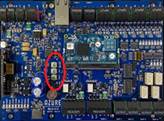
Azure IC2 controllers include three physical buttons:
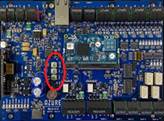
RESET
- Performs a hardware reboot (power cycle equivalent)
- Press and release immediately
SSH
- Enables SSH access for 30 seconds
- Used only for advanced troubleshooting
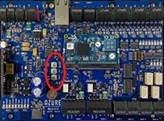
FACTORY DEFAULT
This button has two functions:
- ❌ Full Factory Reset (perform only with the help from IMRON Support)
- ✅ Network Reset (recommended)
Network Reset Procedure (Recommended)
This process resets all configured settings by an operator and the Security Management Software.
- It is Important Ensure the IC2 is powered on. It’s recommended to wait 3-5 minutes from the time the controller was powered on to proceed to next step
- Press and hold the FACTORY DEFAULT button for ~15 seconds
- Release the button once LED 3 illuminates
- Allow a few seconds for the reset to complete
- Network settings return to default and login credentials reset to:
- admin / pass
After reset, reconfigure:
- Network/IP settings
- Cloud CS host
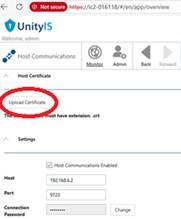
- Site certificate
- Port 9723
- the Security Management Software-assigned controller password copied from corresponding controller properties.
Note:
A temporary password mismatch caused by saving a different password does not necessarily impact IC2/IC4 connectivity or online status. The password will synchronize again the next time a Hardware Download is performed.
Certificate & Password Requirements
Site Certificates
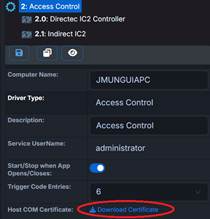
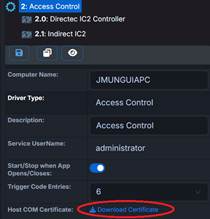
- Each Security Management Software Access Driver generates a unique site certificate
- This certificate must be uploaded to all IC2/IC4 and ZK controllers that will become part of a specific site/ the Security Management Software.
- Certificates are downloadable from the Access Driver Properties in the Hardware Tree of the Security Management Software
Controller Password
- Each controller is assigned a software-generated unique password
- Stored in the database
- Cannot be edited (copy only)
- Must be pasted into the IC2 Host Communication Settings
Best Practice:
- Copy the password from the Security Management Software → Controller Properties
- Paste into the IC2 Host Communication password field
- Use the eye icon to verify both password fields match
Recommendation / Best Practice
If an IC2 controller is:
- Planned to be recommissioned or reused from another site, or
- Web login credentials are unknown
👉 Always perform a Network Reset before commissioning
This ensures:- Old site certificates are cleared
- CS host settings are removed
- Network configuration is reset
- The controller is ready to receive new site parameters
Related Hardware
- Azure IC2
- Azure IC4
- ZK Controllers (site certificates apply; password format differs)